Understanding Git Fetch
You're working on your feature. You want to know what changed on remote. But you don't want to mess with your local files. You don't want to merge anything yet. Just check what's new.
That's git fetch.
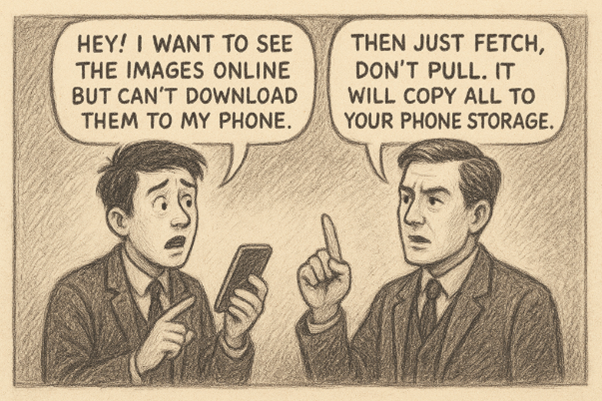
What Git Fetch Does
It downloads information from remote. New commits. New branches. New tags. Everything.- Retrieves the latest changes (commits, branches, tags) from a remote repository.
But it doesn't change your files. Doesn't touch your working directory. Doesn't merge anything.- It’s safe: you can fetch as often as you like without worrying about overwriting local changes.
It downloads information from remote. New commits. New branches. New tags. Everything.
- Retrieves the latest changes (commits, branches, tags) from a remote repository.
- Updates your local metadata (remote tracking branches), but does not merge or apply these changes to your working branches.
- But it doesn't change your files. Doesn't touch your working directory. Doesn't merge anything.
- It’s safe: you can fetch as often as you like without worrying about overwriting local changes.
Think of it as reading the news. You're gathering information. Not taking action yet.> Analogy: If git pull is like receiving new mail and reading it right away, git fetch is like receiving new mail and putting it aside to read later.
2. Common Use Cases
---
config:
  look: handDrawn
  handDrawnSeed: 42
  fontFamily: Caveat
---
flowchart LR
    A[Remote Repository] -->|git fetch| B[Local .git]
    B -.->|No changes| C[Working Directory]
    style A fill:#e1f5ff
    style B fill:#e8f5e9
style C fill:#f0f0f0- Check for new commits on the remote before merging changes locally.
- Review differences between your local branch and the remote branch.
- Fetch updates from multiple remotes in complex setups (e.g.,
origin+upstream).
Your working directory stays clean. You can review changes and decide what to do next.
3. Basic Usage
3.1 Fetch from the Default Remote
This is what you'll use most of the time:
- Fetches updates from all configured remotes (commonlyorigin).
- If you have only one remote, it’s effectively the same as git fetch origin.
3.2 Fetch from a Specific Remote
Fetches all branches from origin. Updates your local knowledge of remote branches.
origin.
- Updates all branches in origin (e.g., origin/main, origin/feature-xyz).
- Does not update local branches automatically.
3.3 Fetch Only a Specific Branch
Fetch only the main branch from the remote named origin:
main branch from origin.
- Updates only origin/main, without touching other branches.
After fetching, check what's new:
This shows commits that exist onorigin/main but not on your local main.
4. Differences at a Glance
| Command | Fetches Updates From | Updates Which Branches? | Use Case |
|---|---|---|---|
git fetch |
All remotes | All remote tracking branches | Check updates from all remotes |
git fetch origin |
origin only |
All branches in origin |
Fetch all branches from origin |
git fetch origin main |
origin only |
Only origin/main |
Quickly fetch updates just for the main branch |
Fetch vs Pull
People confuse these. They're different.
git fetch: Good if you have multiple remotes or want to update all remote branches.git fetch origin: Focuses on fetching all branches fromoriginonly.git fetch origin main: Ideal if you care only about themainbranch.
---
config:
  look: handDrawn
  handDrawnSeed: 42
  fontFamily: Caveat
---
graph TB
    subgraph "git fetch origin"
        A1[Remote] -->|Download info| B1[.git updates]
        B1 -.->|Files untouched| C1[Working Dir]
    end
    subgraph "git pull origin main"
        A2[Remote] -->|Download + Merge| B2[.git updates]
        B2 -->|Files changed| C2[Working Dir]
    end
    style B1 fill:#e8f5e9
    style C1 fill:#f0f0f0
    style B2 fill:#fff4e1
style C2 fill:#ffcdd2| Command | What it does | Safe? |
|---|---|---|
git fetch origin |
Downloads info. Doesn't change files | ✅ Always safe |
git pull origin main |
Fetches AND merges. Changes files | ⚠️ Can cause conflicts |
Best Practice
Fetch first. Review changes. Then decide to pull or merge.
5. Advanced Options
5.1 Fetch All Remotes
- Retrieves updates from every remote (e.g.,origin, upstream).
5.2 Prune Deleted Branches
- Removes remote-tracking branches in your local repo that no longer exist on the remote.Combine both:
- Keeps your local copy of remote branches clean.5.3 Verbose Output
- Shows detailed information about what’s being fetched.6. Morning Routine
Here's how you'll actually use fetch:
You start work. Check what changed overnight.Or use git diff:
7. Applying Fetched Changes
Since fetching alone doesn’t modify your local branches, you can:
- Pull (merge automatically)
- Merge (manual merge)
- Rebase
Now you're synced. Create your feature branch from updated main.
8. Example Scenarios
8.1 Quick Check Before Pulling
- Fetch the latest changes:
- Inspect what’s new:
- Pull if needed:
Now your branch includes the latest from main. No surprises during code review.
8.2 Multiple Remotes
You fork a repository, so you have:
- origin → Your fork.
- upstream → The original repo.
Fetch updates from both:
Merge changes from upstream if necessary.
8.3 Checking on Teammate's Branch
Your teammate is working on feature/payment. You want to see their latest work.
git fetch origin feature/payment
git log origin/feature/payment --oneline -10
git diff main origin/feature/payment
origin.
- You didn't checkout anything. Didn't change your working directory. Just reviewed their work.
9. Key Takeaways
git fetchis a safe way to update your local knowledge of remote branches without modifying your local branches.- Use
git fetch --all --pruneto keep your local copy of remote branches clean. - Use
git fetch origin <branch>if you only need updates for a specific branch. - If you want those fetched changes in your local branch, merge, pull, or rebase.
Quick Command Reference
| Task | Command |
|---|---|
| Fetch all branches from origin | git fetch origin |
| Fetch specific branch | git fetch origin branch-name |
| Fetch from all remotes | git fetch --all |
| Check what's new on main | git log main..origin/main --oneline |
| See code differences | git diff main origin/main |
| Check if you're behind | git status |
Happy Fetching! 🚀
Advanced Usage
Everything below is optional. But useful for complex scenarios.
Fetch Commands Explained
Different Ways to Fetch
Fetch everything
Fetches from all configured remotes. If you only have origin, same as git fetch origin.
Fetch from specific remote
Fetches all branches from origin. This is what you'll use 90% of the time.
Fetch specific branch
Only fetches the main branch. Faster if you only care about one branch.
Fetch all remotes
If you have multiple remotes (like origin and upstream), this fetches from all of them.
Comparison:
| Command | Fetches From | Updates |
|---|---|---|
git fetch |
All remotes | All branches |
git fetch origin |
origin only | All origin branches |
git fetch origin main |
origin only | Only main |
git fetch --all |
All remotes | All branches from all remotes |
Cleaning Up Stale Branches
Using --prune to Remove Dead Branches
Your teammate deleted feature/old-work on remote. But your local git still tracks origin/feature/old-work.
See stale branches:
You'll see branches that don't exist on remote anymore.
Clean them up:
Or automatically prune every time:
Now every git fetch will remove stale branches.
Combined command:
Fetches from all remotes AND removes dead branches. Clean and efficient.
Working with Multiple Remotes
Fetching from Upstream (Forked Repos)
You forked a repository. You have two remotes:
origin→ Your fork on GitHubupstream→ The original repository
Setup upstream (one time):
Check your remotes:
Output:
origin    https://github.com/you/repo.git (fetch)
origin    https://github.com/you/repo.git (push)
upstream  https://github.com/original-owner/repo.git (fetch)
upstream  https://github.com/original-owner/repo.git (push)
Fetch from both:
Or fetch from all at once:
Update your fork with upstream changes:
# Fetch latest from upstream
git fetch upstream

# Checkout your main
git checkout main

# Merge upstream's main
git merge upstream/main

# Push to your fork
git push origin main
Now your fork is synced with the original repo.
Viewing What Changed
Inspecting Fetched Changes
You fetched. Now what? How do you see what changed?
See commits on origin/main that you don't have:
Output:
See commits you have that origin doesn't:
If this shows commits, you're ahead of remote.
See code differences:
Shows actual line-by-line changes.
See only which files changed:
Output:
See commit graph:
Visual representation of branch history.
Fetching Tags
Working with Tags
Tags are version markers. Like v1.0.0, v2.0.0.
Fetch all tags:
List all tags:
Checkout a specific version:
You're now in "detached HEAD" state, viewing the code at version 1.0.0.
Get back to your branch:
Verbose Output
See What's Happening During Fetch
Want to see exactly what git is doing?
Or even more detail:
Output:
Real-World Scenarios
Scenario 1: Before Starting Work
You're about to start a new feature. First, sync your knowledge.
If main has new commits:
Now you're branching off the latest code.
Scenario 2: During Code Review
Someone requested changes on your PR. Meanwhile, main moved ahead.
# Fetch latest
git fetch origin

# Update main
git checkout main
git pull origin main

# Update your feature branch
git checkout feature/your-work
git merge main

# Push updated branch
git push origin feature/your-work
Scenario 3: Checking Teammate's Work
Your teammate asked you to review their branch before they open a PR.
# Fetch their branch
git fetch origin feature/their-work

# Compare to main
git log main..origin/feature/their-work --oneline

# See the code diff
git diff main origin/feature/their-work
You reviewed without touching your working directory.
Common Mistakes
Don't Confuse Fetch and Pull
Wrong:
Right:
Remote Branches Are Read-Only
You can't checkout and work on origin/main directly.
Wrong:
Right:
Best Practices
Do This
- Fetch before starting work
- Fetch before creating a PR
- Use
git fetch originas your default - Review changes before pulling
- Set up auto-prune:
git config --global fetch.prune true
Pro Workflow
Make this your morning routine:
You'll know exactly what changed overnight.
What's Next?
You understand fetch. You know how to check for changes without risking your local work.
Next up: git pull, git merge, and git rebase. How to actually apply those fetched changes.
But fetch is your safety net. Always fetch first. Review. Then act.